User guide
A complete walkthrough: from bringing in two files to reading the results, sharing the report and automating recurring reconciliations.
Signing in
Reconcio runs in your infrastructure, so you sign in at the address of your company's installation, not at a public website. The first user of a new installation becomes its administrator; everyone else joins by an invitation from an administrator.
1. Bring two files
Click New reconciliation. There are two ways to provide the files.
Upload. Drop file A andfile B into the two zones. File A is usually your primary source — a PSP export, an ERP export, a ledger. File B is what you reconcile it against — the accounting ledger, a bank statement, a marketplace payout report.
From storage. If your systems already export files to S3, paste links of the form s3://bucket/path/file.csv. The server reads the files directly from storage, so nothing goes through the browser and large exports work too. The original files are never modified or deleted. This option has to be enabled by an administrator (the list of allowed buckets, S3_SOURCE_BUCKETS).
The files don't need the same column names, the same number of columns or the same number of rows.

2. Choose the columns
After the files are read, Reconcio shows their row counts and suggests how their columns correspond. The suggestion uses column names, data types and a probe on a sample of rows: if two columns rarely agree on the sample — for example, status codes from two systems with different vocabularies — they are suggested as ignored rather than compared. Headers can be in any language.
You are not limited to the suggestions: any column of file A can be paired with any column of file B.

The key
The key is the column that identifies a record in both files: transaction ID, invoice number, order number. Rows are matched by key. A reconciliation needs at least one key column.
InvoiceId + CompanyCode.
Comparison conditions
For every other column, choose how the values are compared:
| Condition | Passes when |
|---|---|
EQ | A equals B |
GT | A is greater than B |
GTE | A is greater than or equal to B |
LT | A is less than B |
LTE | A is less than or equal to B |
IGNORE | Always: the column is not compared |
Amounts are compared exactly, with 64-bit numbers: a one-cent difference on 12,345,678.91 is a discrepancy. Text values are compared without regard to letter case.
3. Run
Click Run reconciliation. The job runs on the server: you can leave the page, the status updates by itself. A million transactions take about 20 seconds; this is checked by an automated test on every release. Actual time depends on your hardware and the number of compared columns.
4. Review the results
When the run completes, the results screen shows:
- convergence — the share of keys that matched completely;
- matched and mismatched rows, rows only in file A and only in file B;
- mismatches per compared column;
- totals of amount columns in each file and their difference;
- recommendations — what most likely needs your attention.

Every metric and the differences file are explained inResults & differences file.
Reports and email
- Differences file (CSV) — every key with the values from both files and the result of every check. Open it in a spreadsheet or load it into your BI tool.
- PDF report — a summary for people who don't need the rows: convergence, totals, compared columns, recommendations and examples of discrepancies.
- By email — send the PDF report to up to 10 recipients, or list recipients when you start a reconciliation and the report is sent automatically when it completes. Requires email to be configured in the installation.
Templates
If you reconcile the same pair of exports regularly — the same PSP, the same ledger format — save the key and compared columns as atemplate.
Choose the template when you start a new reconciliation, in the UI or through the API, and it runs by itself right after the files are prepared. Combined with report recipients, this gives you “export the files → get the report in your inbox” without opening the UI.

History
Reconciliations lists all your past runs with their status, file names, row counts and dates. Filter by status, and open any run to see its full results. The differences file stays available until its expiry date, shown in the results.

API keys
Create a key under API keys to call Reconcio from your own systems. Each key has a name and a set of scopes —reconciliations:read, reconciliations:write,templates:read, templates:write — and optionally rate limits per minute and per day and an expiry date. Pass the key in theAuthorization header; the base path is /api/v1.
Authorization: Bearer <your API key>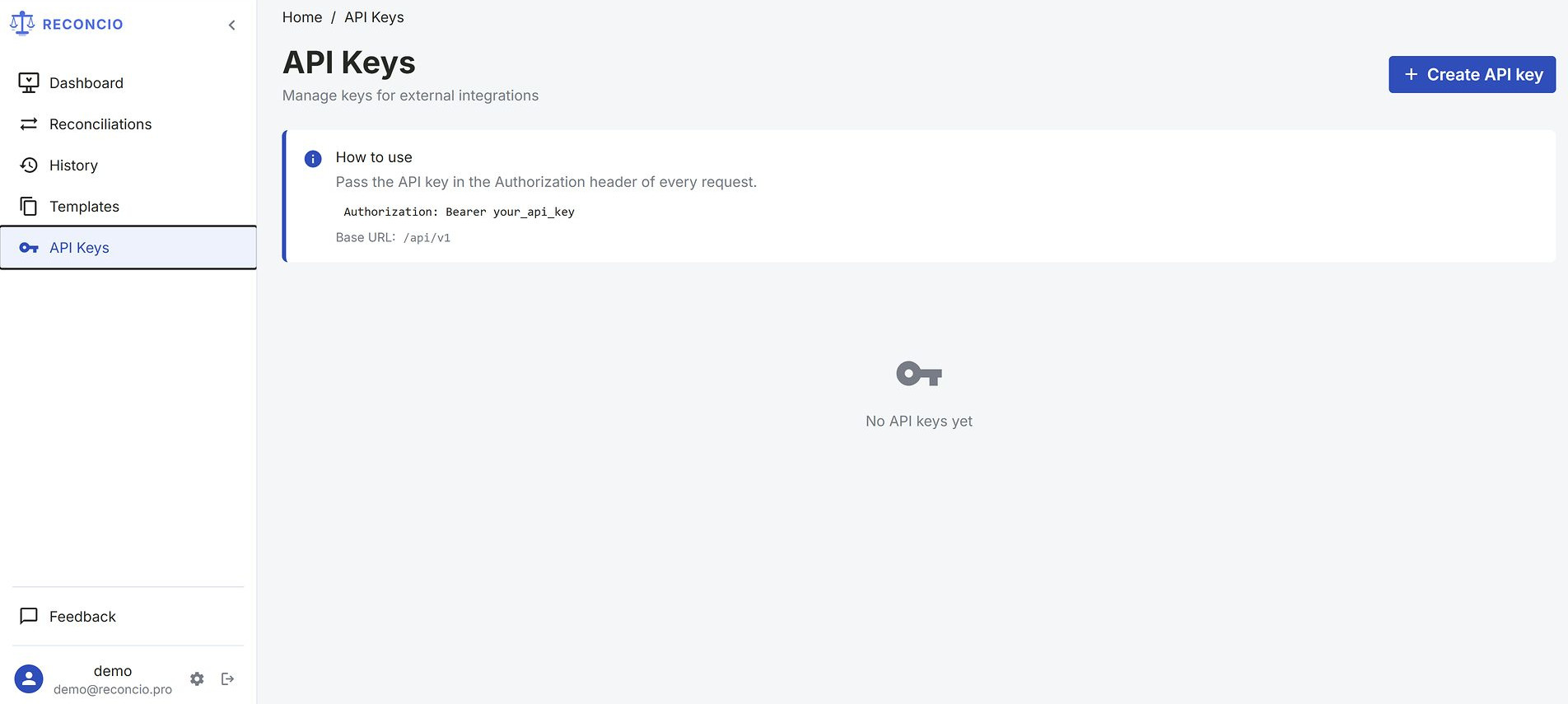
See API for endpoints and examples.
Account and two-factor authentication
In Settings you can switch the interface language (English or Russian) and the theme, change your password and turn on two-factor authentication.
Two-factor authentication uses any TOTP app (Google Authenticator, Authy, 1Password and others). Click Enable 2FA, scan the QR code and confirm with the 6-digit code. From then on, every sign-in asks for the password and a fresh code. To disable 2FA, confirm with a valid code.

Administration
Administrators see an admin console with:
- Overview — version, health of dependencies, license, number of users, reconciliations by status and background tasks;
- Users — search, block and unblock, grant the administrator role. A blocked user loses access immediately, API keys included;
- Invitations — by email, the link is valid for 7 days;
- All reconciliations — filtered by status and owner;
- Background tasks — failed and stuck tasks; a failed task can be retried once the cause is fixed.
File formats
| Format | Extension | Notes |
|---|---|---|
| CSV | .csv | The first row is the header row. Encoding (UTF-8, UTF-16, Windows-1251 or Windows-1252) and delimiter (comma, semicolon, tab or pipe) are detected automatically. |
| Excel | .xlsx | The first sheet is used; its first row is the header row. Cell values are used, not their display format: an amount shown as1,234.56 is the number 1234.56, a date is a date. |
Amounts can be written the way your system exports them:1234.56, 1,234.56, 1.234,56,1 234,56, with a currency symbol or negative in parentheses(10,00). The decimal separator is decided for the whole column, so1,234 next to 75,10 is read as one point two three four. A column is read as numbers only if all its values are numbers; codes like 007 and dates keep their form.
.xls format is not supported. Open the file in Excel or
LibreOffice and save it as .xlsx or export it to .csv.
Limits and retention
- The maximum size of an uploaded file is a setting of your installation.
- Uploaded files are deleted from storage 24 hours after upload; after that a reconciliation can't be run on them again.
- The differences file is kept for the retention period of your installation; its expiry is shown in the results.
- Results — the summary and per-column statistics — stay available after the files are deleted.
Can't find an answer? Write to support@reconcio.pro